Before you start
- You have completed Steps 1–4 in Microsoft Fabric: Create and Run Fusion Pipelines for BI Publisher Data Models and OTBI Analysis Reports, including importing the pipeline template, selecting your connections, and adding the stored procedure code.
- Your Analysis/OTBI Lookup Table is created and loaded in your Fabric SQL destination. If not, see Lookup Tables for Analysis & OTBI Reports.
- You know your Fabric SQL Connection name and database name.
Steps 5 to 7 — Map, schedule, and run
Step 5 — Map the pipeline fields (Analysis & OTBI Reports to Fabric SQL)
Refer the screenshot of the plug-n-play pipeline template below for quick navigational reference.
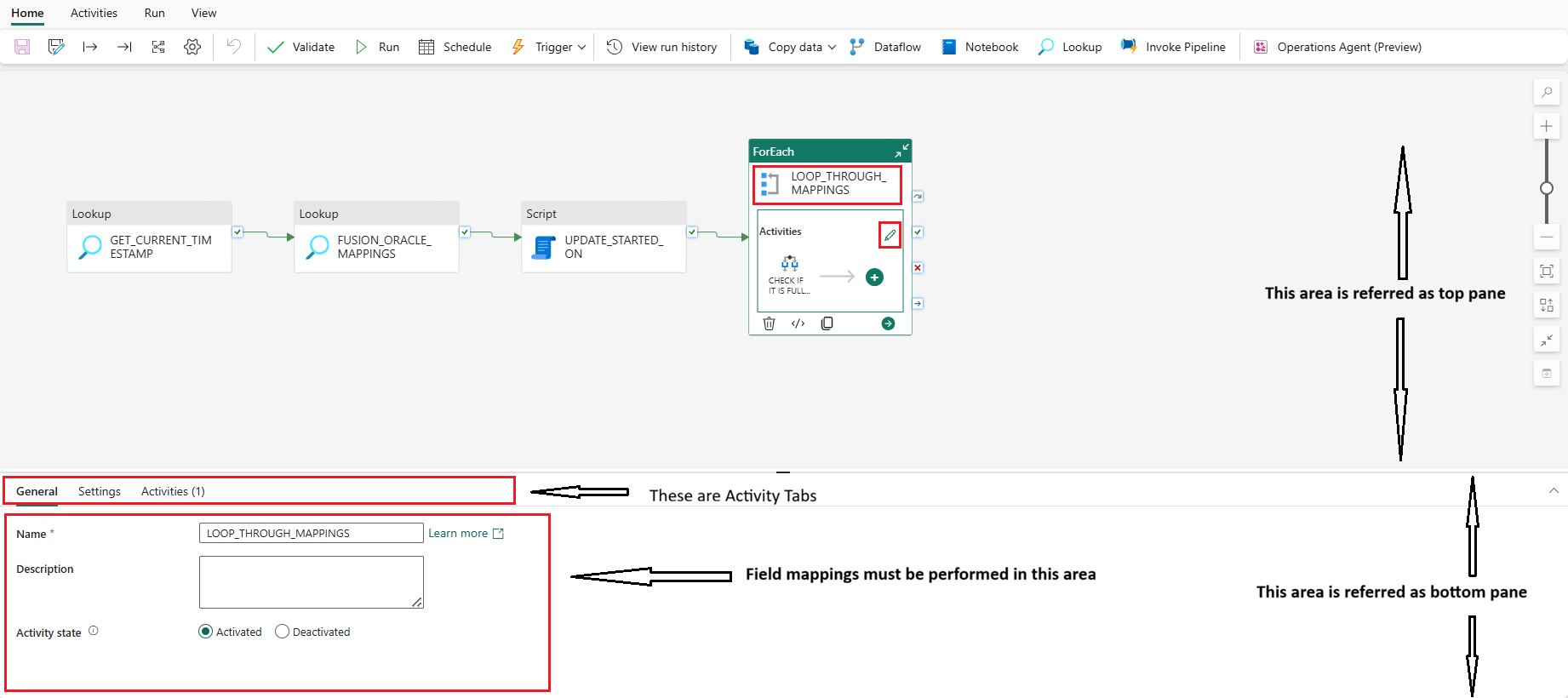
Complete the mappings row by row by referring to the table below.
For each row, start from the cell in the left. Complete the steps in that left-most cell, and move on to the steps on the cells in the right. After the steps in a row is completed fully, start from the left cell in the next row.
Finish the steps in all the rows.
| Pipeline activity (and sub-activities nav) | Activity tab | Mappings |
|---|---|---|
| → Click LOOP_THROUGH_MAPPINGS in the top pane → Click Edit in the Activities box → Double-click GET_ALL_DATA_FROM_FUSION | → Click the Destination tab at the bottom pane | Map the following in the bottom pane: → Connection — Map the Fabric SQL Connection → SQL Database — Map the database |
| → Double-click GET_DELTA_DATA in the top pane | → Click the Destination tab at the bottom pane | Map the following in the bottom pane: → Connection — Map the Fabric SQL Connection → SQL Database — Map the database |
| → Double-click UPDATE_LOOKUP_STATUS_FULL_LOAD in the top pane | → Click the Settings tab at the bottom pane | Map the following in the bottom pane: → Connection — Map the Fabric SQL Connection → SQL Database — Map the database → Stored Procedure Name — Click Refresh next to the dropdown and select the OTBI Reports stored procedure you created before (default [dbo].[UPDATE_LOOKUP_STATUS_OTBI_REPORTS]) |
| → Double-click UPDATE_LOOKUP_STATUS_INCR_LOAD in the top pane | → Click the Settings tab at the bottom pane | Map the following in the bottom pane: → Connection — Map the Fabric SQL Connection → SQL Database — Map the database → Stored Procedure Name — Click Refresh next to the dropdown and select the OTBI Reports stored procedure you created before (default [dbo].[UPDATE_LOOKUP_STATUS_OTBI_REPORTS]) |
Step 6 — Schedule automated runs
Click the Schedule option on the top ribbon and set up the refresh schedule for automated pipeline runs.
Step 7 — Run the pipeline
Trigger the first pipeline run by clicking the Run option on the top ribbon. Enter the Lookup table name and Destination schema name on the prompted parameter values.
After the run completes, you can verify if the pipeline executed successfully by checking the tables loaded on to the destination schema. The next run would automatically kick-in based on the schedule you set in Step 6.